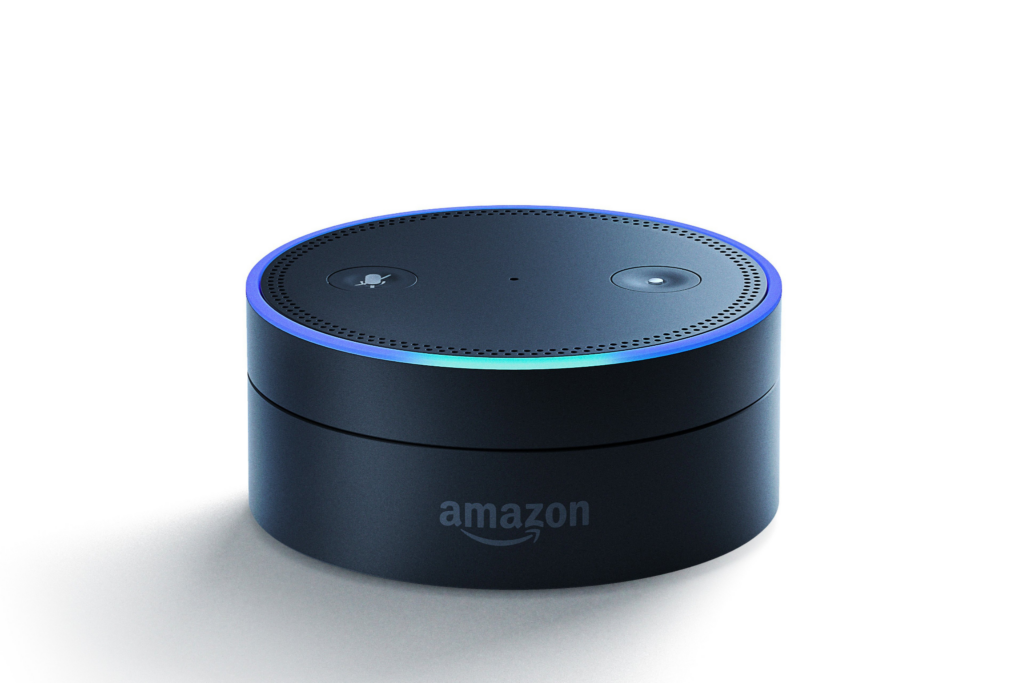
Source: G Fernandes/Flickr
The Amazon Echo is just one of the many digital assistive technologies we use daily. From answering quick questions to playing games and controlling smart home devices, Alexa (Amazon’s cloud-based voice service) makes everyday tasks easier.
However, like many voice-activated technologies, Echo devices are always listening, and in some cases, collecting data in the background. With a few quick adjustments, you can take more control over your information. Start with these four features:
Drop In
Drop In is an Alexa feature that lets you instantly connect to other Alexa-enabled devices. There are two options:
- Household Drop In, which connects devices within your home
- Contact Drop In, which allows approved contacts who also have an Alexa device to connect to your Echo at any time
Steps to disable:
In the Alexa app, navigate to Devices > Select your device > Tap the Settings icon > Communications > Drop In > Choose Off
Hunches
Hunches are automated suggestions from Alexa based on your routines, such as offering to lock your door at night or suggesting a new way to use timers. Although helpful, they may at times feel intrusive or disruptive.
Steps to disable:
In the Alexa app, navigate to More > Settings > Hunches > Settings > Under Suggestions, turn off notifications
Voice Recordings
By default, Amazon stores recordings of your interactions with Alexa to help enhance its services. If you’d prefer not to have your conversations saved, you can modify or disable this setting.
Steps to disable how long you want your voice recordings and transcripts to be saved:
In the Alexa app, navigate to More > Alexa Privacy > Manage Your Alexa Data > Under Voice Recordings, select Choose how long to save recordings > Tap Voice Recordings and Transcripts > Choose one of the following options: Save until I delete them, Save for 18 months, Save for 3 months, or Don’t save recordings > Tap Confirm
Steps to delete your voice recordings and transcripts:
Navigate to More > Settings > Alexa Privacy > Review Alexa History > Use filters (Date, Device, or Profile) to find recordings > Choose Delete
Amazon Sidewalk
Amazon Sidewalk lets you extend your network’s reach to connect smart devices like Ring security cameras and lights, improving connectivity inside and outside your home. However, it also means sharing a small portion of your internet bandwidth with nearby Sidewalk-enabled devices, including those owned by neighbors.
Steps to disable:
Navigate to More > Settings > Account Settings> Amazon Sidewalk in your Alexa app. Tap to disable it.

Whether you’ve just purchased an Amazon Echo or want to better understand its privacy settings, Outlook Enrichment is here to help. Our adaptive technology trainers will guide you on how to make the most of its features as an assistive tool while protecting your personal information. Contact us to get started.